


Online Bookings: Let Customers Book Their Service Straight From Your Reminder
Service reminders do a lot to bring customers back each year. They let the customer know their gas service or safety check is due, and many book one in straight away. But this means a phone call that has to fit around your day and theirs.
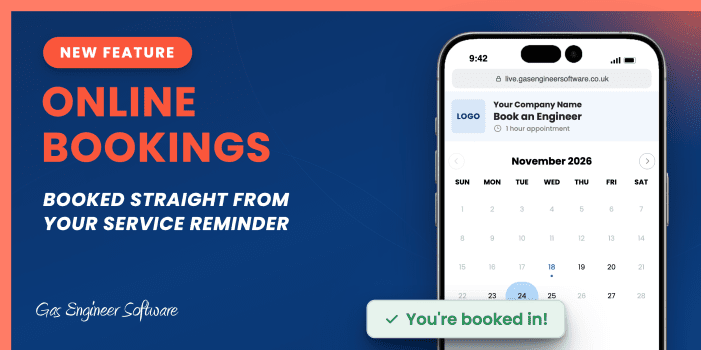
The new Online Bookings system in Gas Engineer Software closes that gap. Customers can click the link, skip the phone call, and pick a time at their convenience — with the appointment going straight to your calendar.
Want to cut to the chase? Read the setup guide here.
Vote on what gets added next to Gas Engineer Software and suggest your own ideas on our feature request board!

Set up Online Bookings today
Set your engineers' availability, choose your booking rules and add the booking link to your reminders, all from Settings in the web portal.
Turn on Online Bookings →Not yet a GES user? Start a free 14-day trial to test every feature.
What’s new?
There’s a new Online Bookings section in your settings that lets your customers book jobs straight into your calendar, at a time that suits them and you.
Each reminder then carries a link unique to that customer’s property, which opens a booking page with your company name and logo. Your customer:
- picks a day from your calendar of available dates
- picks a time slot
- checks the date, time and address, then taps Confirm Booking
There’s no form to fill in, since GES already knows who the customer is and which address the reminder was for, so those details come through pre-filled.

The customer only ever sees the slots you’ve said you can take. You decide which engineers take online bookings, which hours they’re available, how long each appointment is, and how much notice you need.
Online Bookings is available on the Pro plan.
How this helps your business
Fewer calls to answer and return. With a booking link, customers can book themselves in without having to phone you up.
Bookings come in when customers are free, not when you are. Plenty of people read their emails in the evening or at the weekend. With a link in the reminder, they can book there and then, while it’s on their mind.
It’s easier for your customers. More of your reminders can turn straight into booked jobs.
No double-booking. The booking page checks your engineers’ calendars in GES. If an engineer already has something in the diary, that slot isn’t offered.
Nothing to re-type. The booking is added to your calendar and a job is set up for it, so there’s no copying details from a voicemail into the diary.
How the new workflow works
Here’s what happens once a reminder with a booking link goes out.
What your customer sees
- The reminder arrives as usual, but now includes the Book online here link (or the short link in an SMS).
- They open the booking page. Days with free slots are shown in bold. Days that are fully booked or unavailable are greyed out.
- They choose a time.
- They confirm.
- They’re booked in. They see a confirmation on screen, and GES sends them your Appointment Confirmation email straight away.

What happens on your side
As soon as the customer confirms:
- The booking is confirmed straight away.
- An engineer is assigned.
- A Servicing appointment is added to your calendar
- A job is set up for it.
- You get a notification email.
From there it’s an ordinary appointment. Open it, assign or reassign it, and get on with the job like any other.
If the customer can no longer make it, they call you as they would now. When you move or remove the appointment in your calendar, the slot frees up again on the booking page.
How to set up online bookings
You’ll need to be on the Pro plan and logged into the web portal. Setup is quick and easy in three parts: your availability, your booking rules, and the link in your reminders.
1. Set your engineers’ availability
- Go to Settings, then Online Bookings.
- On the Availability tab, choose an engineer from the list and switch Online Bookings on for them.
- Turn on the days they can take bookings and set the start and end time for each day.
- Repeat for any other engineers you want to take bookings, then click Save.
2. Set your booking rules
On the Booking settings tab, choose:
- Slot length: how long each appointment is (1 hour by default)
- Minimum notice: how soon a customer can book (24 hours by default), so nobody books a slot for an hour’s time
- Future booking window: how far ahead customers can book (4 weeks by default)
Click Preview to see your booking page exactly as your customers will.
3. Add the booking link to your reminders
Simply drag the :bookinglink tag (listed as “Online booking link”) into the email, wherever you want the link to appear.
For the full step-by-step guide, head to our help centre article.
More updates are already in development
Online Bookings is part of our wider work on service reminders, making them easier for you to set up and easier for your customers to act on. If there’s something you’d like to see next, drop it on our feature request board or get in touch. The most requested ideas tend to be the ones we build first.
Want more from your reminders in the meantime? Read our guide on how to set up gas boiler service reminders, or see what our data says about SMS reminders.
Set up Online Bookings today
Set your engineers' availability, choose your booking rules and add the booking link to your reminders, all from Settings in the web portal.
Turn on Online Bookings →Not yet a GES user? Start a free 14-day trial to test every feature.